
240Hz Gaming Monitors
Keep up with every move. Explore 240Hz monitors for fast-paced gaming.
37 products

- Free shippingOn orders over $1,000
- Business pricingVolume & trade discounts
- Expert supportSpec help from pros


-
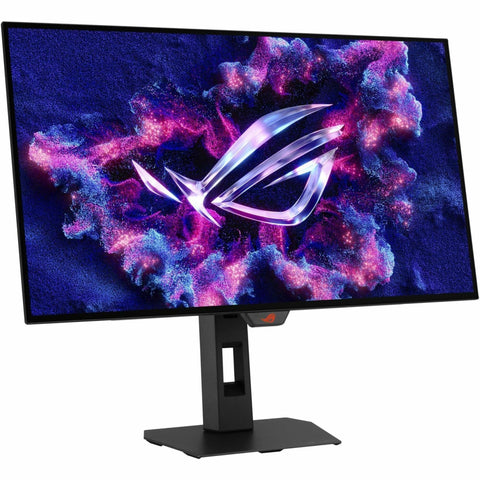
Asus ROG Strix XG27AQDMGR 27" Class WQHD Gaming OLED Monitor - 16:9 - Black - XG27AQDMGR
Regular price $690.99 USDRegular priceUnit price per -
Legion 34W-2c 34" Class UW-QHD Curved Screen LED Monitor - 21:9 - Eclipse Black - 68F6GACBUS
Regular price $428.99 USDRegular priceUnit price per -
MSI MAG 32C6X 32" Class Full HD Curved Screen Gaming LED Monitor - 16:9 - Black - MAG32C6X
Regular price $218.99 USDRegular priceUnit price per -
MSI 245F X24 24" Class Full HD Gaming LCD Monitor - 16:9 - Black - MAG245FX24
Regular price $129.99 USDRegular priceUnit price per -
MSI MAG 272QP QD-OLED X24 27" Class WQHD Gaming OLED Monitor - 16:9 - Metallic Black - MAG272QPQDOLEDX24
Regular price $499.99 USDRegular priceUnit price per -
MSI MPG 272URX QD-OLED UHD 240Hz 27 inch Gaming Monitor - MPG272URXQDOLED
Regular price $1,099.99 USDRegular priceUnit price per -
Lenovo Legion 32Q-2c 32" Class WQHD Curved Screen LED Monitor - 16:9 - Eclipse Black - 68F5GACBUS
Regular price $375.99 USDRegular priceUnit price per -
MSI MAG 275CQDF X24 27" Curved WQHD Rapid VA Gaming Monitor - 240Hz (400Hz Dual Mode), HDMI, DisplayPort - MAG275CQDFX24
Regular price $263.99 USDRegular priceUnit price per -
ViewSonic VX2426 24" 1080p FHD 240Hz IPS Gaming Monitor with HDMI 2.1, FreeSync Premium and HDR10 - VX2426
Regular price $149.99 USDRegular priceUnit price per$169.00 USDSale price $149.99 USDIn stockSale -
Acer Nitro EI491CUR W3 49-Inch DQHD 32:9 Curved Gaming Monitor - 5120x1440, 240Hz, 1000R, VA, FreeSync (UM.SE1AA.301)
Regular price $935.99 USDRegular priceUnit price per -
Asus ROG Strix XG32UCWMG 32-inch 4K UHD OLED Gaming Monitor - 240Hz Dual Mode, 0.03ms, HDR, KVM, Black
Regular price $1,151.99 USDRegular priceUnit price per -
Asus ROG Strix XG27UCDMG 27-inch 4K QD-OLED Gaming Monitor - 240Hz, 0.03ms, DisplayHDR 400, USB-C 90W
Regular price $1,035.99 USDRegular priceUnit price per -
MSI MAG 274CF X24 27" Class Full HD Curved Screen Gaming LCD Monitor - 16:9 - Metallic Black - MAG274CFX24
Regular price $160.99 USDRegular priceUnit price per -
Acer Nitro XV272U W2 27" Class WQHD Gaming LED Monitor - 16:9 - Black - UM.HX2AA.201
Regular price $272.99 USDRegular priceUnit price per -
MSI MPG 322URX 32-Inch 4K QD-OLED Gaming Monitor - 240Hz, DisplayPort 2.1a (MPG322URXQDOLED)
Regular price $1,299.99 USDRegular priceUnit price per -
Lenovo Legion 27-10 27" Class Full HD LED Monitor - 16:9 - Raven Black - 68C5GAC4US
Regular price $216.99 USDRegular priceUnit price per -
Asus ROG Strix XG259QNG-W 25" Class Full HD Gaming LED Monitor - 16:9 - White - XG259QNG-W
Regular price $253.99 USDRegular priceUnit price per -
Samsung Odyssey Neo G9 S57CG952NN 57" Class DUHD Curved Screen Gaming LED Monitor - 32:9 - Black, White - S57CG952NN
Regular price $2,099.99 USDRegular priceUnit price per -
MSI MPG 322UR QD-OLED X24 32" Class 4K UHD Gaming OLED Monitor - 16:9 - Black - MPG322URQDOLEDX24
Regular price $1,263.99 USDRegular priceUnit price per -
Legion 27Q-2c 27" Class WQHD Curved Screen LED Monitor - 16:9 - Eclipse Black - 67EFGAC1US
Regular price $289.99 USDRegular priceUnit price per -
ViewSonic VX2726 27" Class Full HD Gaming LED Monitor - 16:9 - VX2726
Regular price $186.99 USDRegular priceUnit price per -
TUF VG249QML5A 24" Class Full HD Gaming LED Monitor - 16:9 - Black - VG249QML5A
Regular price $185.99 USDRegular priceUnit price per -
ViewSonic VX2738-2K-OLED 27 Inch 1440p Gaming Monitor, OLED Display with 240Hz and 0.03ms for Smooth Gameplay, FreeSync Premium, Eye Care Technology, Advanced Ergonomics, HDMI, and DisplayPort - VX2738-2K-OLED
Regular price $530.99 USDRegular priceUnit price per -
Asus ROG Swift PG27UCDM 27" 4K QD-OLED 240Hz Gaming Monitor
Regular price $1,270.99 USDRegular priceUnit price per -
MSI MPG 346CQRF X24 34" Class UWQHD Curved Screen Gaming LCD Monitor - 21:9 - Black - MPG346CQRFX24
Regular price $436.99 USDRegular priceUnit price per -
MSI MAG 272F X24 27" Class Full HD Gaming LCD Monitor - 16:9 - Metallic Black - MAG272FX24
Regular price $160.99 USDRegular priceUnit price per -
LG UltraGear 34GS95QE-B 34" Curved UW-QHD OLED Gaming Monitor
Regular price $1,431.99 USDRegular priceUnit price per -
ViewSonic XG2431 24-Inch 240Hz Gaming Monitor - 1080p IPS, 0.5ms, FreeSync Premium, G-Sync Compatible, USB Hub, HDMI, DisplayPort
Regular price $274.99 USDRegular priceUnit price per -
ViewSonic XG2736-2K 27-Inch 1440p 240Hz Gaming Monitor - IPS, 0.5ms, FreeSync Premium, G-Sync, 65W USB-C, RGB, HDMI 2.1
Regular price $375.99 USDRegular priceUnit price per -
MSI MPG 491CQPX QD-OLED 49-inch DQHD Curved Gaming Monitor - 32:9, 5120x1440, 240Hz, 0.03ms, USB-C 98W (MPG491CQPXQDOLED)
Regular price $1,199.99 USDRegular priceUnit price per -
MSI MPG 321URXW 32-inch 4K QD-OLED Gaming Monitor - 240Hz, 0.03ms, DisplayHDR True Black 400 (MPG321URXWQDOLED)
Regular price $1,099.99 USDRegular priceUnit price per -
MSI MPG 321CURX 32-inch 4K QD-OLED Curved Gaming Monitor - 240Hz, 0.03ms, HDMI 2.1 (MPG321CURXQDOLED)
Regular price $1,099.99 USDRegular priceUnit price per -
Asus ROG Strix XG27AQDMG 27" Class WQHD Gaming OLED Monitor - 16:9 - Black - XG27AQDMG
Regular price $690.99 USDRegular priceUnit price per -
Samsung Odyssey OLED G9 49" DQHD QD-OLED Gaming Monitor - 240Hz, 32:9 Curved (S49CG934SN)
Regular price $1,993.99 USDRegular priceUnit price per -
Asus ROG Swift PG32UCDM 32" 4K QD-OLED 240Hz Gaming Monitor
Regular price $1,381.99 USDRegular priceUnit price per -
MSI MAG 275CF X24 27" Class Full HD Curved Screen Gaming LCD Monitor - 16:9 - Black - MAG275CFX24
Regular price $160.99 USDRegular priceUnit price per -
MSI MAG 272UP QD-OLED X24 27" 4K UHD Gaming OLED Monitor - 240Hz, 0.03ms, QD-OLED, HDMI 2.1, USB-C, HDR True Black 400 (MAG272UPQDOLEDX24)
Regular price $804.99 USDRegular priceUnit price per


240Hz Gaming Monitors Buying Guide
A 240Hz monitor draws a new frame 240 times a second, four times as often as a standard 60Hz screen. In fast shooters like Counter-Strike 2, flick shots, strafing enemies, and quick peeks stay sharp instead of smearing between frames. 240Hz gaming monitors come in 1080p, 1440p, and 4K OLED, plus ultrawide and super ultrawide shapes for a wider view.
Is 240Hz Good for Gaming?
Yes, when your PC can keep up, because 240Hz pays off in games running near 240 frames per second. Valorant is built to run at high frame rates on modest hardware, while bigger games like Fortnite or Call of Duty: Warzone can need lower graphics settings to get there.
NVIDIA Reflex on GeForce cards and AMD Anti-Lag 2 on Radeon cards lower system latency in supported games, including Counter-Strike 2. Adaptive sync, sold as AMD FreeSync or G-SYNC Compatible, matches the screen to your frame rate when it dips, which cuts tearing and stutter.
What Is the Best 240Hz Monitor for Your Setup?
1080p 240Hz monitors suit esports players who want the highest frame rates from a mid-range PC. At 24 or 25 inches the whole screen, minimap and kill feed included, stays in view with less eye movement.
1440p 240Hz monitors are the balance point, with sharper distant targets at frame rates a strong PC can hold. The ASUS ROG Strix XG27AQDMG pairs a 27 inch 1440p glossy OLED panel with a 0.03 ms response time for players who want OLED clarity without the demands of 4K. Browse more 1440p monitors.
4K 240Hz monitors give the sharpest picture, for players with a high-end graphics card who want detail in story games and speed in shooters. The ASUS ROG Swift PG32UCDM puts a 32 inch 4K QD-OLED panel at 240Hz, and a dual-mode ASUS 4K OLED switches to 1080p at 480Hz for competitive rounds. See all 4K monitors.
Ultrawide and super ultrawide 240Hz monitors, from LG's 34 inch UltraGear OLED to Samsung's 57 inch Odyssey Neo G9, show more of the game world in racing and open-world games that support the wider format. Browse more ultrawide monitors.
Is 240Hz Worth It Over 144Hz?
For competitive play, yes. Each frame lasts about 4.2 milliseconds at 240Hz against 6.9 at 144Hz, so fast targets update sooner and motion stays clearer, as long as your PC runs well past 144 frames per second. If your frame rates sit closer to 144, compare 144Hz gaming monitors or browse all gaming monitors. Going faster, 360Hz cuts each frame to about 2.8 milliseconds and pays off mainly in lighter esports games at 1080p.
240Hz Gaming Monitor FAQs
Is OLED good for competitive gaming?
Yes. OLED models list response times as low as 0.03 milliseconds, so fast motion stays clean at 240Hz. Burn-in from static elements like a taskbar or a fixed HUD is the trade-off, so ASUS and MSI add care features such as pixel shift that reduce the risk, and both cover burn-in under 3 year warranties.
What GPU do I need for 1440p 240Hz?
It depends on the game. In Valorant, a mid-range GeForce RTX 5060 averaged about 460 fps at 1440p with max details in ComputerBase's testing. In heavier games, holding 240 fps at 1440p takes a high-end card, lower settings, or both.
Can PS5 run 240Hz?
No. PS5 and Xbox Series X output up to 120Hz. Check that the monitor's HDMI input accepts 120Hz and set 120Hz in the console's video output settings, or compare 120Hz gaming monitors.
Can HDMI do 240Hz?
Yes, when the monitor lists 240Hz over HDMI, so check the specs for the top refresh rate on each port. At 4K, 240Hz over HDMI 2.1 uses DSC compression, which VESA calls visually lossless, and needs a graphics card that supports it, such as a GeForce RTX 40 or 50 series card. Find HDMI 2.1 monitors.
How do I get 240Hz on my monitor?
In Windows, open Settings > System > Display > Advanced display, and pick 240Hz under "Choose a refresh rate". A new connection can start at 60Hz. If 240Hz isn't listed, try DisplayPort or a different cable.